In short
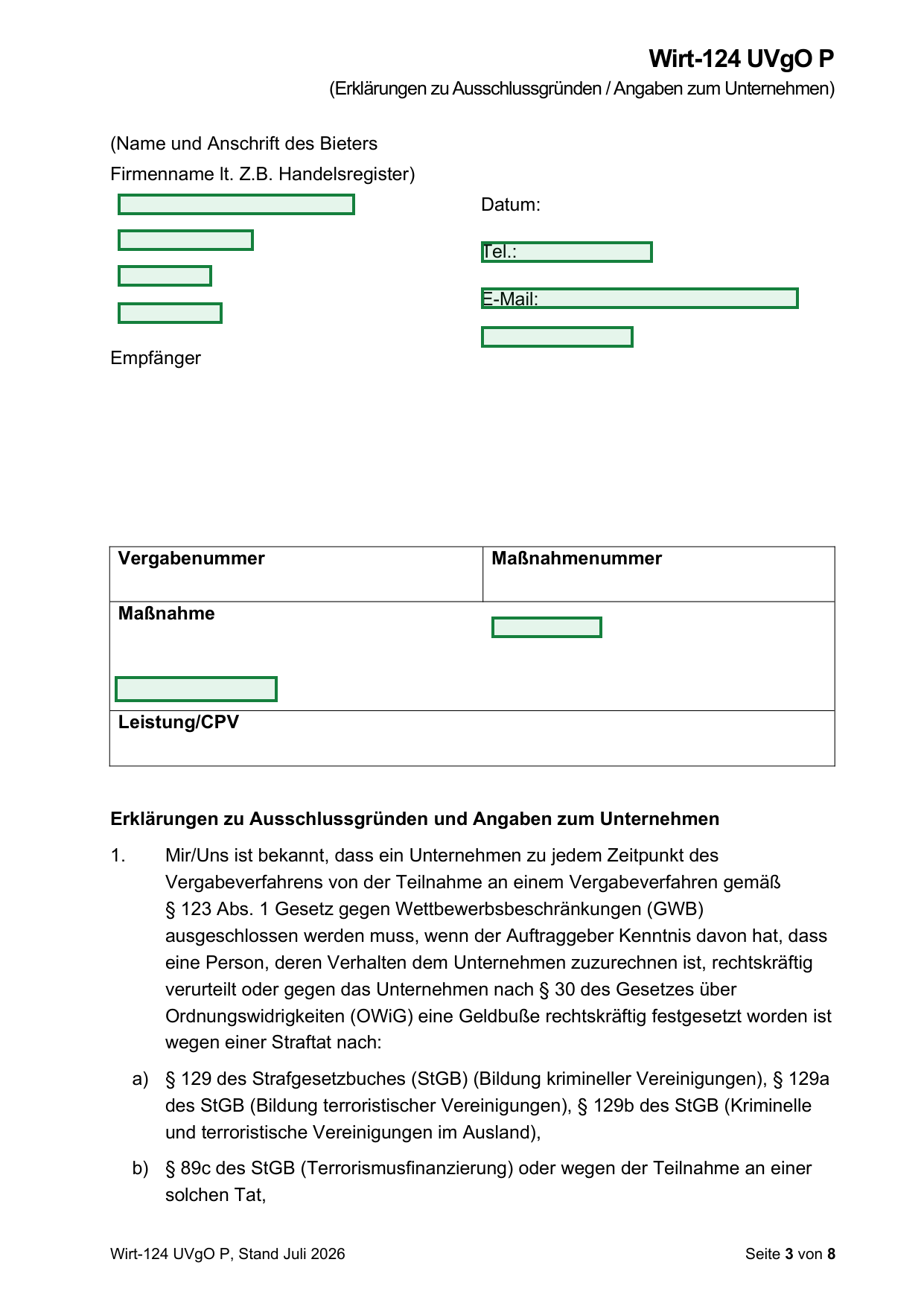
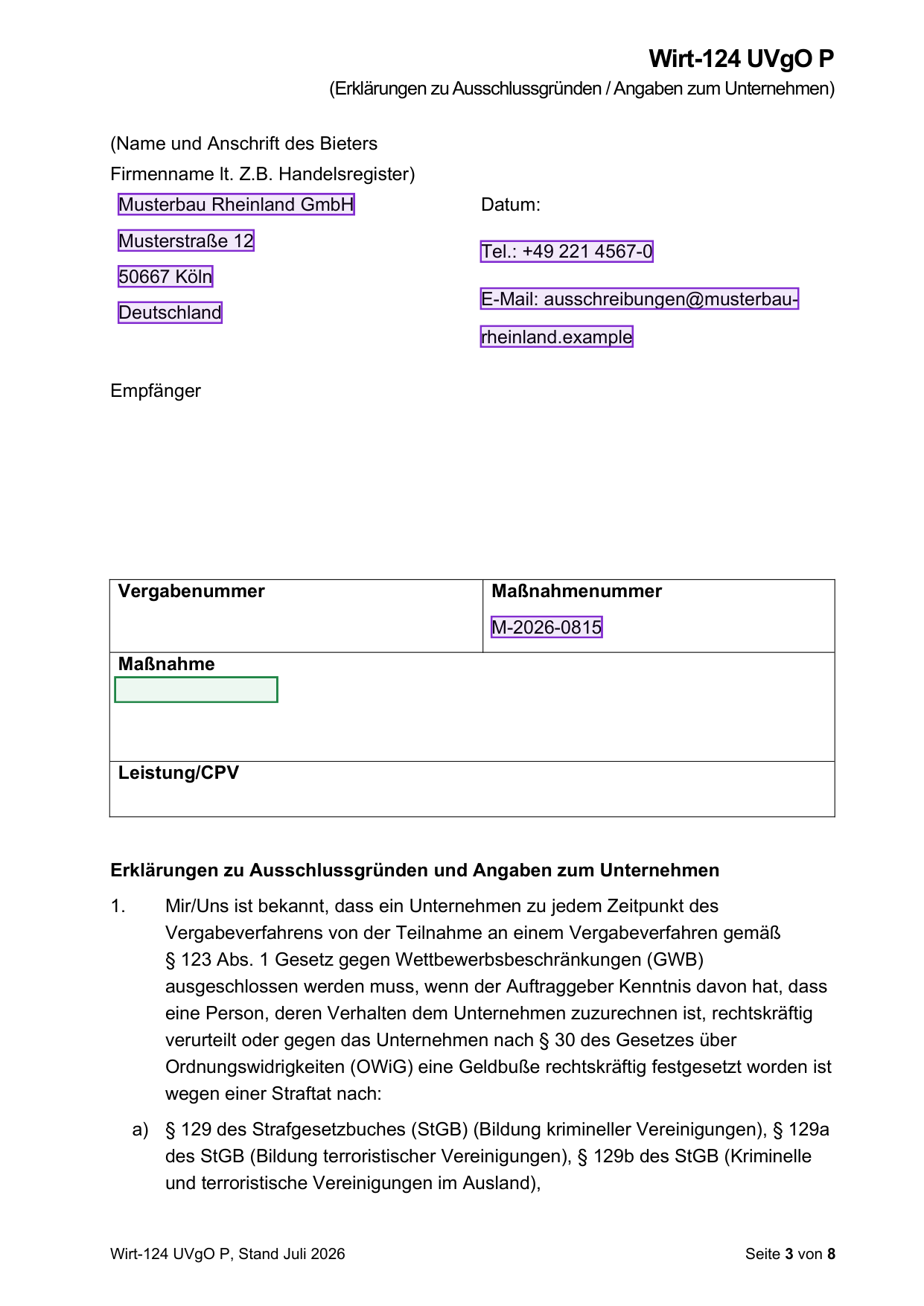
Every government bid comes with forms: self-declarations, reference forms, the ESPD, German Formblätter. Always the same company details, always in a slightly different place. TenderRender recognizes the answer slots on the form itself and lays them over the document as colored boxes. Green means: something can go here, click and type. Purple means: an answer is already in place, and a click on the cross removes it. The AI uses those same boxes to fill forms automatically with verified data from your Library (your previously completed forms and evidence) and your Brain (your company profile with fixed company facts).
Two kinds of forms, one problem
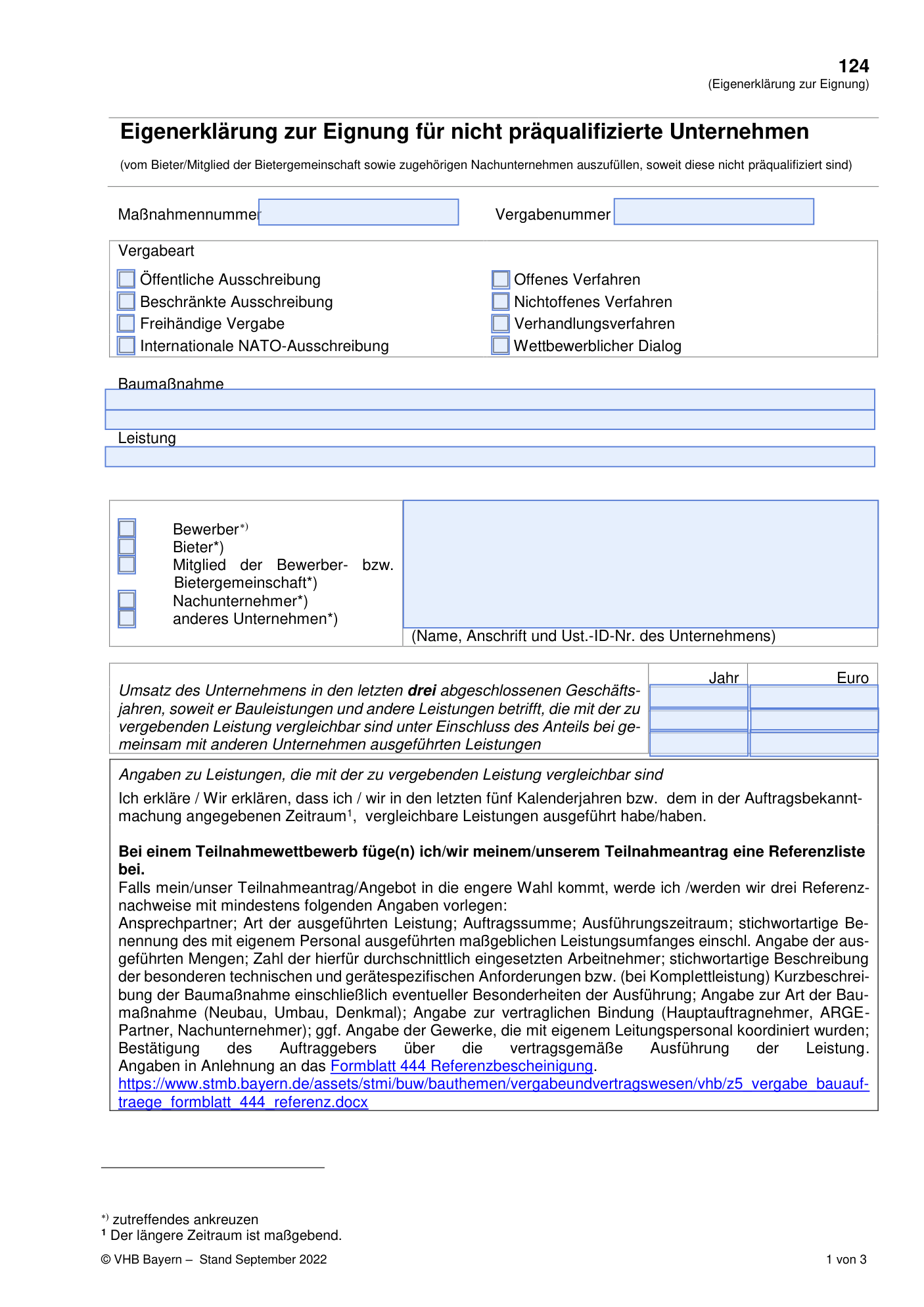
Bid forms come in two flavors. Sometimes you get a tidy PDF with real fillable fields. Click the blue box and type:
But most forms look like this. The same kind of form, only as a flat print. No field to click, just a table with white space where the answer belongs:
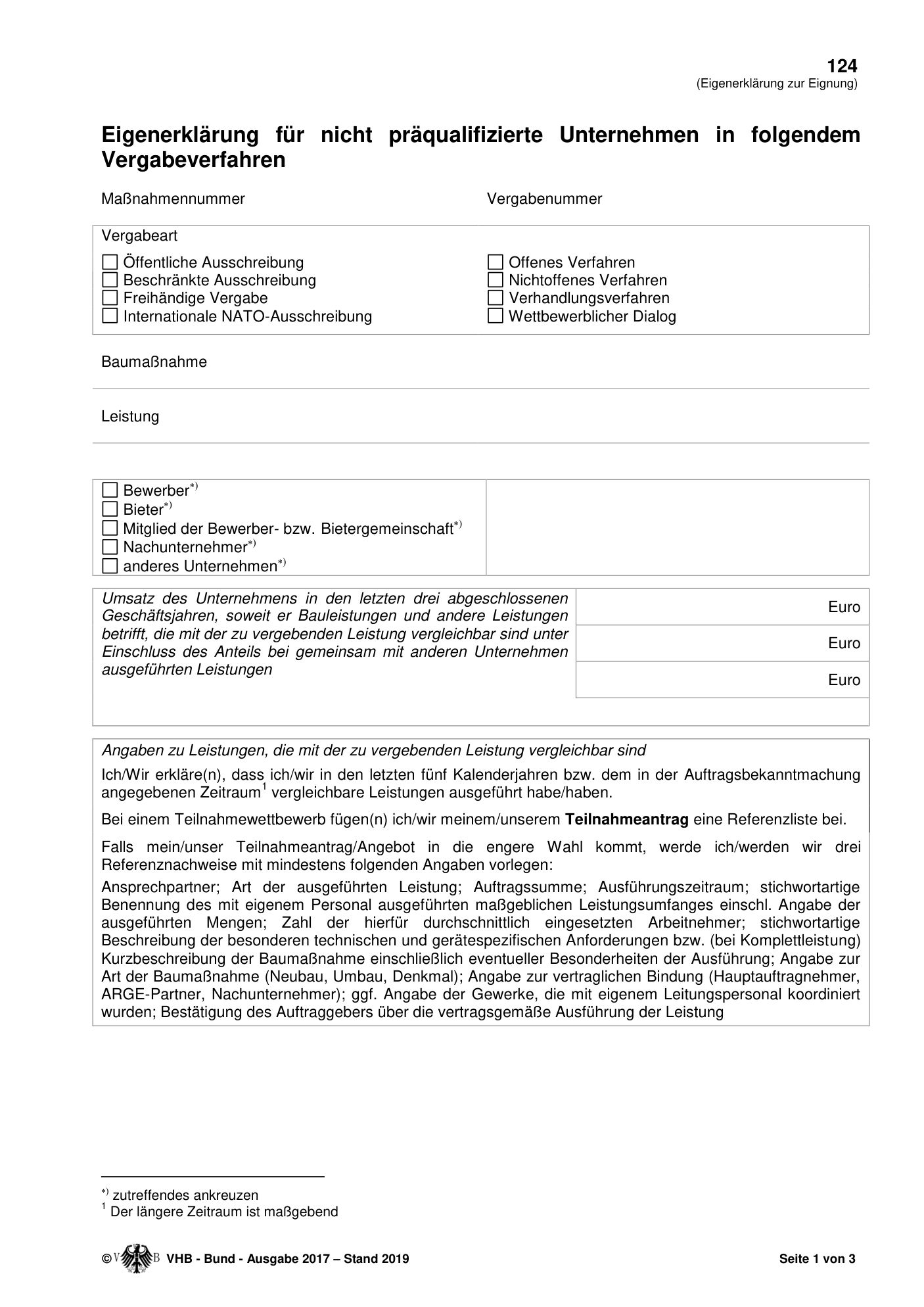
You see at a glance where the answer should go. Software could not, for a long time. Every bid manager knows the consequence: retyping the same twenty details for every bid. Registration number, IBAN, insurance, revenue figures, references. Error-prone work that says nothing about the quality of your proposal. Word forms with a dotted line after "Name and position:" have the same problem: there is nothing to click.
Where the answers come from
The AI draws on two fixed places in TenderRender. The Brain is your organization's memory: verified company facts such as your registration number, IBAN, insurances, revenue figures and certifications. The Library is your document cabinet: previously completed forms, declarations and evidence from earlier submissions. That is where the AI looks first. The project documents of the bid itself supply the bid-specific details, such as reference numbers and the name of the contracting authority.
How it works, step by step
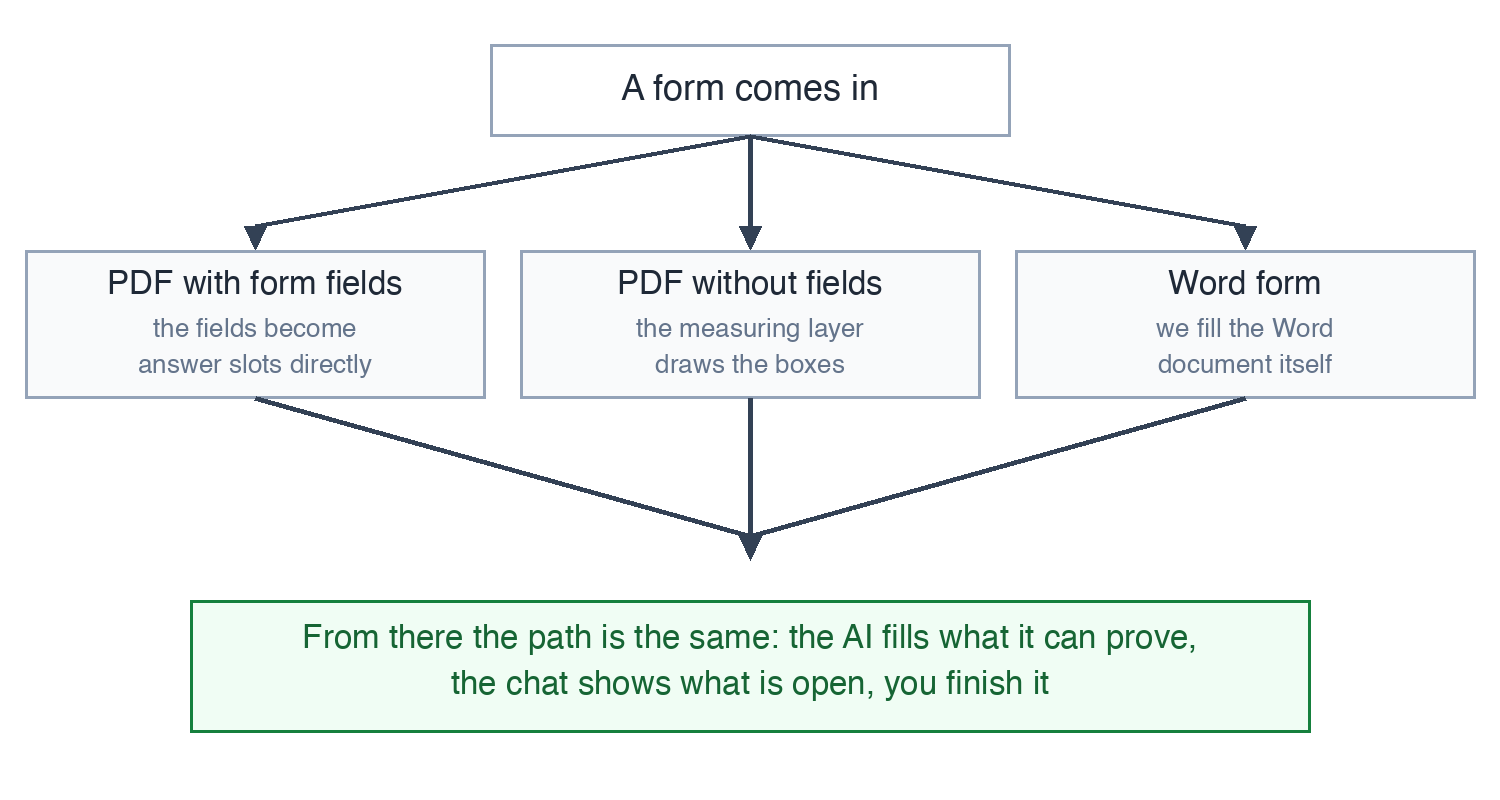
The steps below show a flat PDF, but this works on all three shapes you meet: PDFs with form fields, flat PDFs without, and Word forms too. Word forms we fill in the same way, in the form's own layout. The difference: with Word, the purple boxes show what the AI has filled, and you simply edit the text in the document.
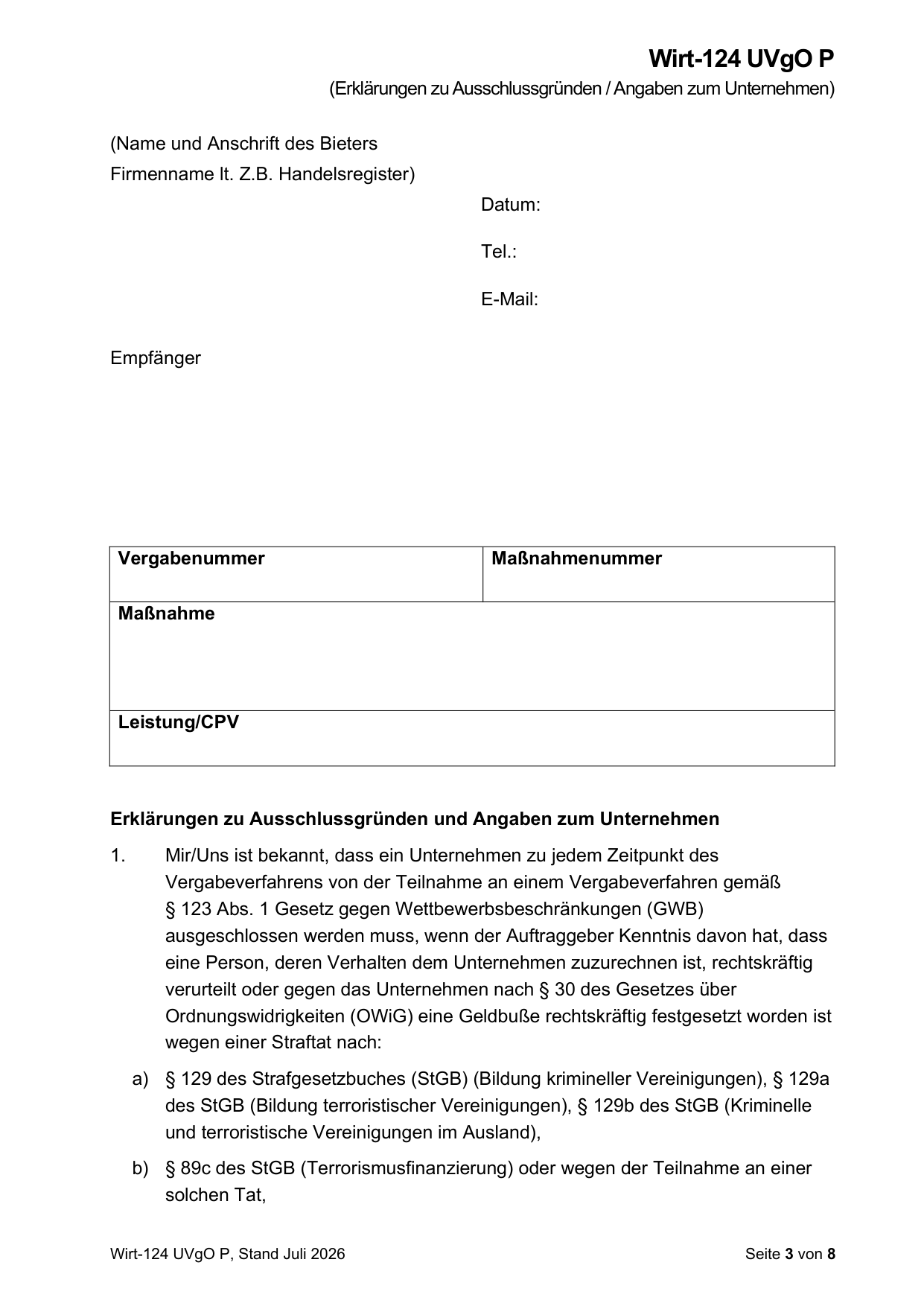
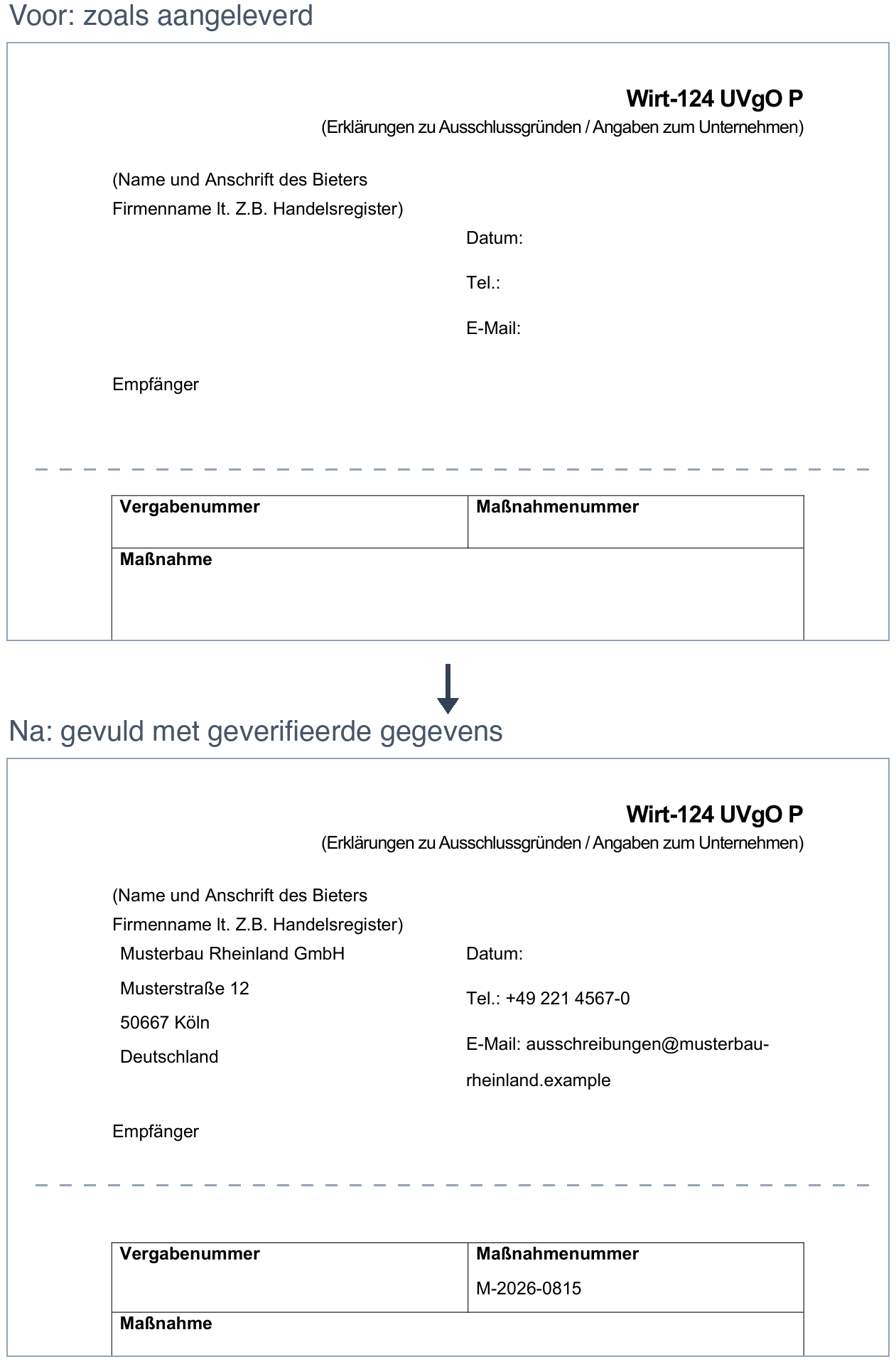
Step 1: the form arrives as it is. No pre-processing, no template we set up in advance. This is a real German form (Wirt-124, "Erklärungen zu Ausschlussgründen"), blank:
Step 2: the software draws the boxes. A measuring layer reads the form the way you do: where is the label, and where is the empty space the answer belongs in? Every place it finds becomes a green box on the document, an answer slot. Nothing has been filled yet. The form simply knows where something can go:
Step 3: the AI fills what it can prove. Through those same boxes the AI fills the form with data from your Brain and Library. Filled slots turn purple. Anything the AI cannot back with a source stays green and open:
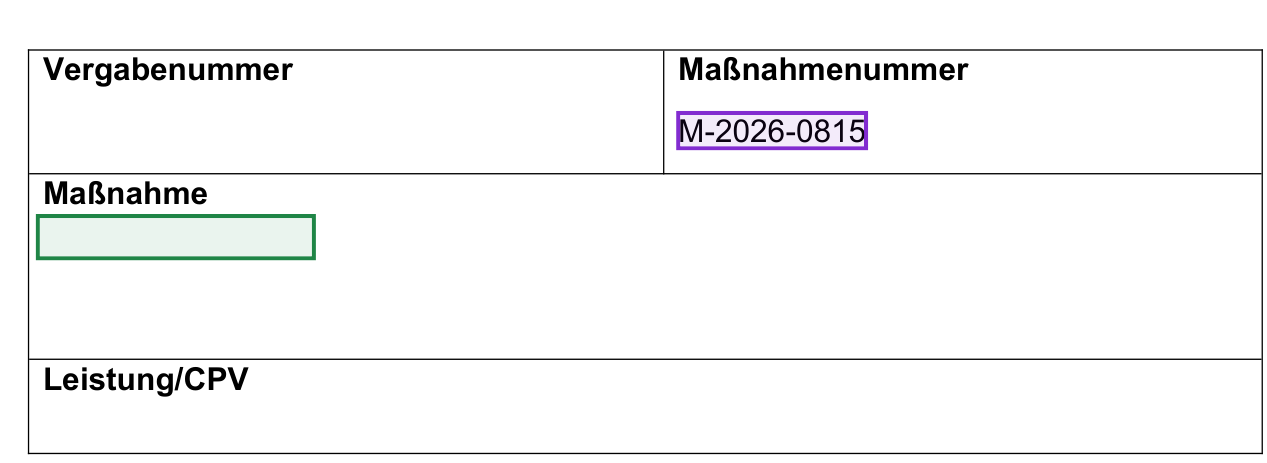
Step 4: the chat asks what is still open, and you finish it. After the fill, the chat lists which slots are still open and why. You can complete them in two ways. Type the answers into the chat and they land in the right place on the form. Or click a green box and type the value directly in the document: press enter, and the text is there, in the form's own typeface. Made a mistake? Click the purple box and change the value, or remove it with the cross. That works even if the AI wrote it. Every action becomes a new version, so you can always go back:
The AI fills, you check
Automatic filling follows one hard rule: only data that demonstrably comes from your sources. No source? The slot stays empty and goes on the review list, with the reason attached. You walk through the list, fill the last boxes, and the document is ready for submission.
Signatures and initials always stay empty. A known place of signing and today's date can be filled in; they go on the review list. That the rest of the form stays intact is not a promise but a check: every filled version is compared with the original and only saved if the pages, the printed text and the signature block are unchanged.
For yes/no declarations, such as the exclusion grounds in the ESPD, the AI prefers an earlier declaration from exactly the same legal person in a dated source document. Without one, it can enter a provisional answer. Both always appear on the review list, with the source where there is one. You confirm every answer before signing.
Refilling is always possible, for instance after you have expanded your Library. The AI then takes the filled form as its starting point, improves what can be better substantiated and removes what no longer holds. Each round becomes a new version, so you can always go back.
What this means for your workweek
The retyping fades into the background. The AI fills what is verifiable, you walk through the review list and fill the last bid-specific boxes. What remains is the work that actually matters: the content of your proposal.
The best start? Upload your previously completed forms to your Library and complete your Brain. The more complete those two are, the more the system can fill for you.