Use TenderRender without leaving Microsoft Word
Open TenderRender from the Word Home tab, select proposal text, and work with your project context in a task pane next to your document. Ask for improvements, review suggestions, and write accepted edits back into Word.

Trusted by 60+ proposal teams












What the Word add-in does
Reads selected Word content
Use the text you select in Word as context for review, rewriting, summarising, or proposal-specific questions.
Chat with project context
Ask TenderRender questions from the task pane while keeping your Word document open next to the answer.
Writes accepted edits back
Keep control of the final text. Review suggestions first, then insert accepted edits into the Word document.
Uses your TenderRender library
Bring in approved company information, past wins, and reusable answers from your TenderRender workspace.
Supports proposal review
Check selected sections against tender requirements and turn feedback into practical improvements.
Clear document permission
The add-in needs ReadWriteDocument permission to read selected proposal content and write edits you accept.
How it works in Word
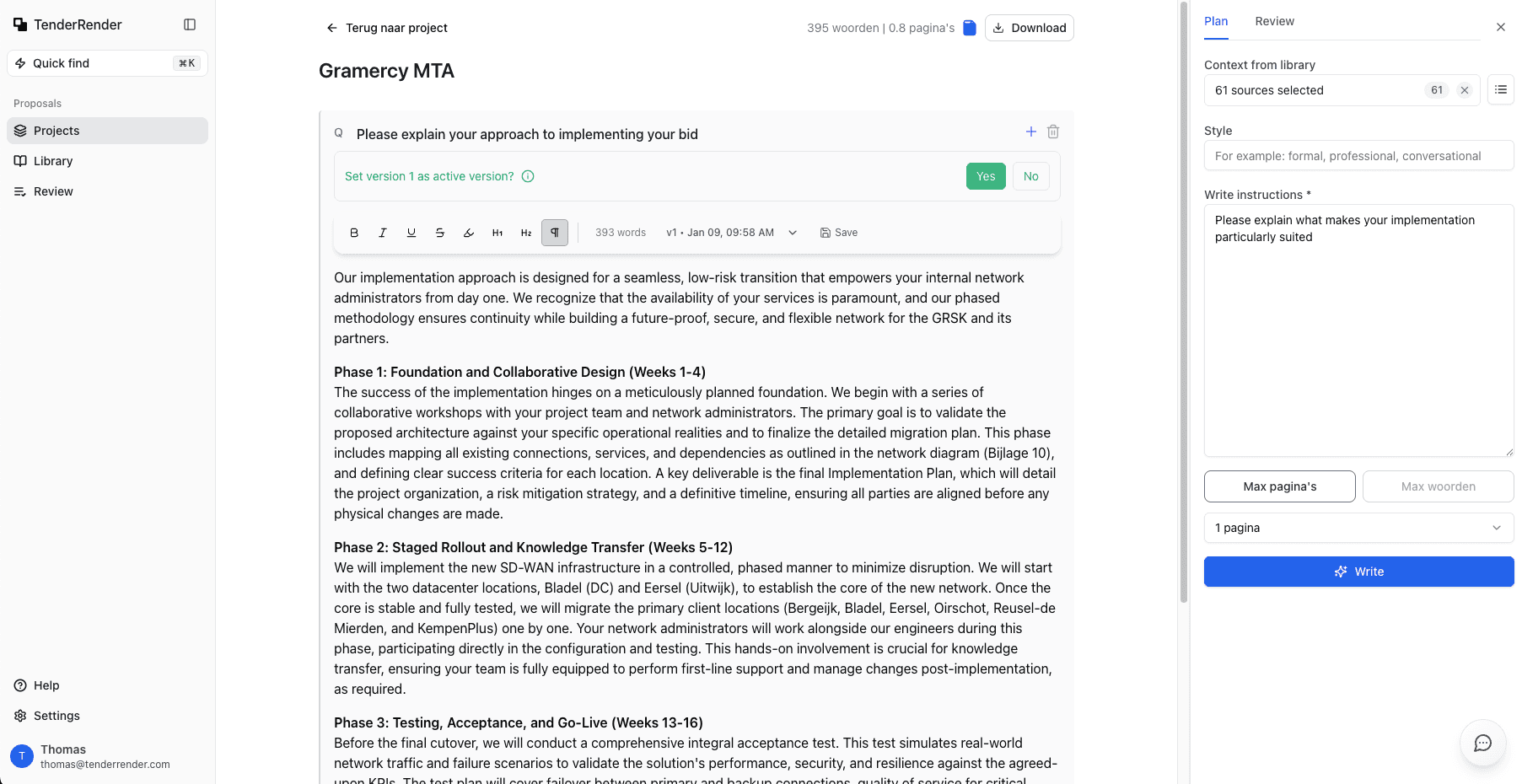
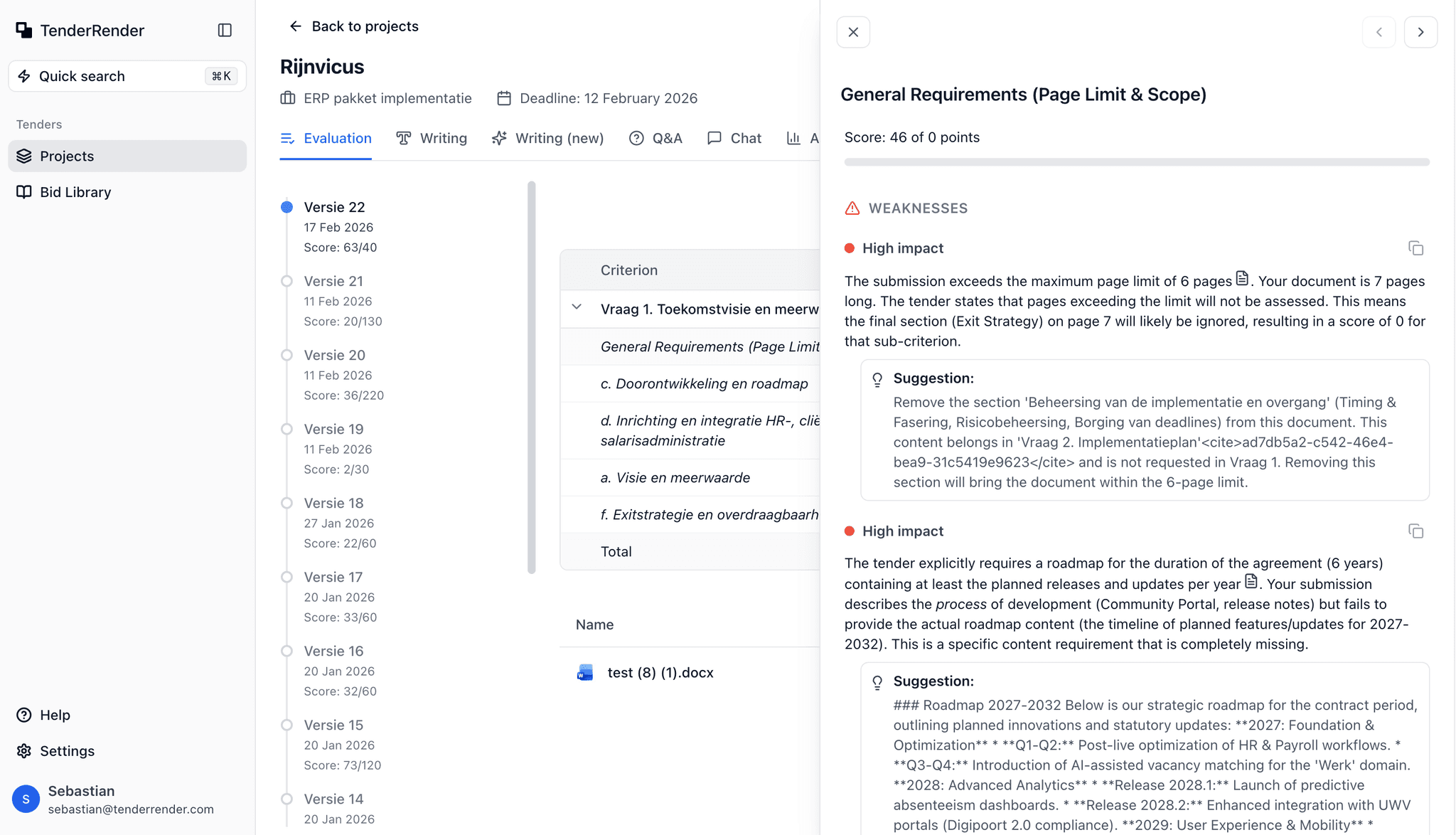
Install the add-in, open Microsoft Word, and launch TenderRender from the Home tab. A task pane opens next to your document.
Select a paragraph, section, or answer in Word. Ask TenderRender to improve, review, summarise, or rewrite it using your project context.
TenderRender shows a suggested answer or edit. You decide what to accept before anything is written back into the document.
Requirements and support
TenderRender-provisioned organization account required
Organizations purchase TenderRender, and TenderRender provisions individual accounts outside the Word add-in. Individual self-service signup is not available. Customer onboarding and training are also delivered outside the add-in.
Request organizational accessWhy Word document access is needed
ReadWriteDocument lets the add-in read the content you select and write back accepted edits. It does not change your document without your action.
Public support is available
For installation, sign-in, or Word workflow questions, contact TenderRender support from the public contact page.
This page explains the add-in for new users and Microsoft reviewers without requiring a TenderRender login.
TenderRender's privacy policy and terms are linked from the site footer and apply to the Word add-in experience.
TenderRender is intended for Word on the web and Word desktop on Windows and Mac.
FAQ
Everything you need to know about TenderRender

Want to see what TenderRender can do with your next RFP? Schedule a demo.